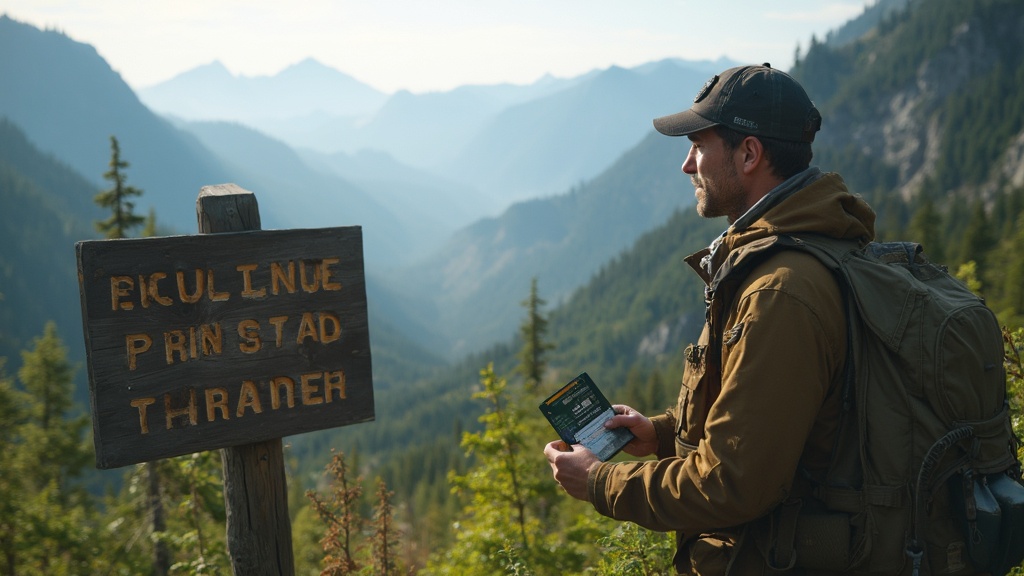
USFS Digital Trailhead Pass 2026: How to Buy & Use on Cascades

Hook
Ever stood at a Cascades trailhead, fumbled for cash, and watched the ranger shake their head? That awkward moment is about to become a thing of the past—if you know how to navigate the brand‑new USFS digital trailhead pass launching this July.
Context
The U.S. Forest Service announced a digital‑first system for trailhead permits this year, aiming to cut down on cash handling, speed up entry, and give hikers real‑time pass status. For anyone who spends more time at the trailhead than on the trail, mastering this system can shave minutes off your start‑up time and, more importantly, keep you from a costly “wrong‑permit” penalty.
What You’ll Need
- A compatible smartphone (iOS 14+ or Android 10+)
- A valid credit/debit card or a Recreation.gov account
- The USFS Pass app (available on the App Store and Google Play)
- Your USFS Trailhead Pass ID (if you already own a physical pass)
Step‑by‑Step Guide
1. Download the Official USFS Pass App
The Forest Service released the app on June 15, 2026. It’s listed under “USFS Trailhead Pass” on both the Apple App Store and Google Play. The app’s description confirms it supports digital‑only passes for Washington, Oregon, and California forest‑service trailheads.
2. Create or Link Your Recreation.gov Account
If you already have a Recreation.gov account (used for campsite and permit reservations), you can link it directly from the app’s Settings → Account. This syncs your payment method and lets you purchase passes without re‑entering card details each time.
3. Choose Your Pass Type
The USFS offers three main pass options for Cascades hikers:
- Annual Trailhead Pass — $35 /year, covers unlimited entry at all fee‑required trailheads.
- Seasonal Pass (May‑Oct) — $20 /season, ideal for summer backpackers.
- Day Pass — $5 per day, for occasional outings.
Pro tip: If you plan more than seven day‑passes in a year, the Annual Pass saves you at least $5.
4. Purchase Inside the App
Select the pass, confirm the price, and hit Purchase. The transaction is processed through Recreation.gov’s secure gateway, and you’ll receive an instant digital receipt.
5. Activate the Pass at the Trailhead
When you arrive, look for the “Scan & Pay” kiosk (usually a small solar‑powered terminal near the parking lot). Open the USFS Pass app, tap “Activate”, and hold your phone up to the QR code on the kiosk. The system logs your entry and updates the pass status in real time.
Note: Some remote trailheads still lack a kiosk. In those cases, the app generates a QR code you can show to a ranger for manual verification.
6. Verify Your Pass Status
After activation, the app displays a green checkmark and the time‑stamped entry log. You can view your full pass history under My Passes → Activity Log. This log is handy if you ever need to dispute a charge.
Common Pitfalls & How to Avoid Them
| Pitfall | Why It Happens | Fix |
|---|---|---|
| No signal at remote trailhead | The kiosk can’t verify your QR code offline. | Pre‑load the QR code on your phone (Settings → "Offline QR") and show it to the ranger. |
| Using the wrong pass type | Seasonal passes don’t cover winter months. | Double‑check the season dates on the pass details page before purchase. |
| Expired digital receipt | Some hikers delete the app after a trip. | Export your receipt to email ("Share Receipt") before uninstalling. |
Internal Links for Faster Planning
- Need to know which Cascades trailheads require a pass? See our Washington Trailhead Pass Matrix 2026 for a quick reference chart.
- If you’re still figuring out permit timing, read Cascades Permit Clock: What You Can Still Book This Week for the latest opening windows.
- For gear that won’t let you down on a day‑pass hike, check out Essential Gear for Day Hikes: Bring This, Skip That.
- Curious how real‑time washout alerts affect pass usage? Our guide How to Use Real‑Time Data to Dodge Cascades Washouts walks you through the same app’s map layer.
Outbound Resources
- USFS Passes & Permits — Official page: https://www.fs.usda.gov/visit/passes-permits (updated January 2026)
- Recreation.gov Digital Pass Info — https://www.recreation.gov/digital-pass (details on payment processing)
- Washington Trails Association – Scan and Pay — https://www.wta.org/news/signpost/scan-and-pay-usfs-unveils-digital-payment-option-at-many-national-forest-trailheads-campgrounds (launch timeline and kiosk locations)
- USFS Digital Northwest Forest Pass — https://www.fs.usda.gov/r06/passes/digital-northwest-forest-pass (regional rollout specifics)
Takeaway
The USFS digital trailhead pass isn’t just a convenience—it’s a safety net. By setting up your account, buying the right pass, and mastering the QR‑scan process, you’ll spend less time at the gate and more time on the trail. Remember: download the app early, verify your pass type, and keep a backup QR code. Your next Cascades adventure will thank you.
FAQs (Rich Results)
Steps
- 1
Download the Official USFS Pass App
The Forest Service released the app on June 15, 2026. Find "USFS Trailhead Pass" on the App Store or Google Play and install it on your iOS 14+ or Android 10+ device.
- 2
Create or Link Your Recreation.gov Account
If you already have a Recreation.gov account, link it in the app Settings → Account. This syncs your payment method for quick purchases.
- 3
Choose Your Pass Type
Select Annual ($35/year), Seasonal ($20/May‑Oct), or Day Pass ($5/day) based on your hiking schedule. Pro tip: annual saves you $5 if you hike more than seven days a year.
- 4
Purchase Inside the App
Select the pass, confirm the price, and tap Purchase. The transaction processes via Recreation.gov’s secure gateway and you receive an instant digital receipt.
- 5
Activate the Pass at the Trailhead
At the Scan & Pay kiosk, open the app, tap "Activate", and hold your phone to the QR code. If no kiosk, show the offline QR code to the ranger for manual verification.
- 6
Verify Your Pass Status
The app shows a green checkmark and logs the entry time. Check "My Passes → Activity Log" to view history and resolve any disputes.